Passwords Are Obsolete: Passkeys, YubiKey and Safer Alternatives
Reading time: 9 minutes
Last modified:
The password is a 1960s invention. MIT’s CTSS system used one to separate users on a shared mainframe. Sixty years later we still ask people to invent, memorise and never reuse dozens of secrets, and we blame them when attackers steal those secrets.
The blame is misplaced. The password model is broken, and no policy fixes it.
Why Passwords Fail by Design
A password is a shared secret. You know it, and the server verifies it. That structure creates four problems that no complexity rule removes.
Anyone who learns it can use it. The server stores a hash, but you still send the secret itself on every login. Phishing pages, keyloggers, infostealer malware and a compromised reverse proxy all capture it in transit. Verizon’s 2025 Data Breach Investigations Report puts credential abuse first among initial access vectors, at 22% of breaches.
You reuse them. You cannot remember 150 unique 16-character strings. You reuse, so one breach at a forgotten forum becomes a breach at your bank. Credential stuffing tools automate this: they replay leaked email and password pairs against thousands of services per hour. Have I Been Pwned now indexes billions of leaked accounts, and any email address you have used for ten years is likely in it.
Complexity rules make it worse. “Eight characters, one capital, one symbol” produces Summer2026!. NIST SP 800-63B dropped mandatory composition rules and periodic rotation for this reason. Forced rotation trains people to append a digit.
The server is a target. Every service that stores password hashes holds a prize. Weak hashing, a misconfigured backup or an insider turns it into a leak. Your users inherit that risk from every vendor they ever signed up with.
Password managers help with reuse and weak choices. They do not stop a user from pasting a perfect 24-character password into a convincing fake page. The fix has to remove the shared secret.
Passkeys: Public-Key Cryptography Instead of Secrets
A passkey is a FIDO2 credential built on the WebAuthn standard, which the FIDO Alliance and W3C developed. The mechanism is the same asymmetric cryptography that secures SSH keys and TLS certificates.
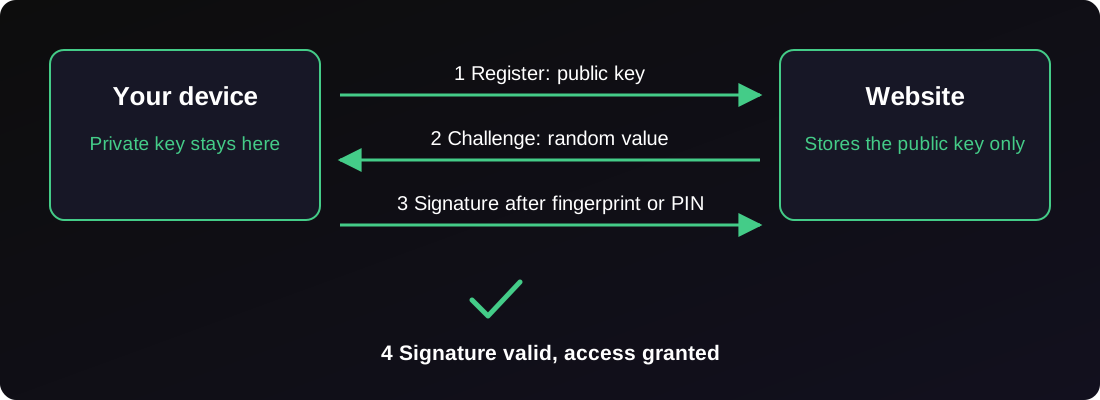
- When you register, your device generates a key pair for that specific site.
- The device keeps the private key. The site receives the public key.
- When you log in, the site sends a random challenge. Your device signs it after you confirm with a fingerprint, face scan or PIN.
- The site verifies the signature with the public key.
Three properties follow from this design.
Nothing reusable crosses the network. A signed challenge is valid once, for one site. A database leak exposes public keys, which are useless to an attacker.
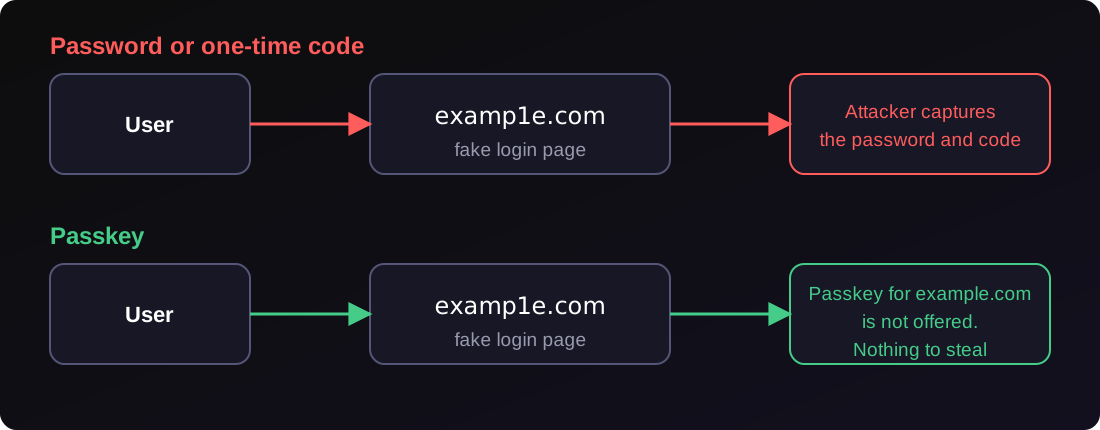
Phishing stops working. The browser binds the credential to the real domain. On examp1e.com the passkey for example.com does not appear, and the user has nothing to hand over. This is the property that separates passkeys from every code-based method.
Biometrics stay local. Your fingerprint never leaves the device. It unlocks the private key and nothing else.
Synced and device-bound passkeys
Passkeys come in two forms:
- Synced passkeys live in iCloud Keychain, Google Password Manager, Microsoft’s stack or a password manager such as 1Password or Bitwarden. They follow you across devices and survive a lost phone.
- Device-bound passkeys live on one piece of hardware, such as a security key, and never leave it.
Synced passkeys remove the main usability objection: a lost phone no longer means a lost account. The trade-off is that the sync provider’s account becomes part of your security perimeter. Secure that account with a hardware key, and the chain holds.
Support is broad. Apple, Google and Microsoft ship passkeys in their operating systems and browsers. GitHub, PayPal, Amazon, Shopify and most large identity providers accept them. Microsoft has made new accounts passwordless by default.
YubiKey: The Passkey You Can Hold
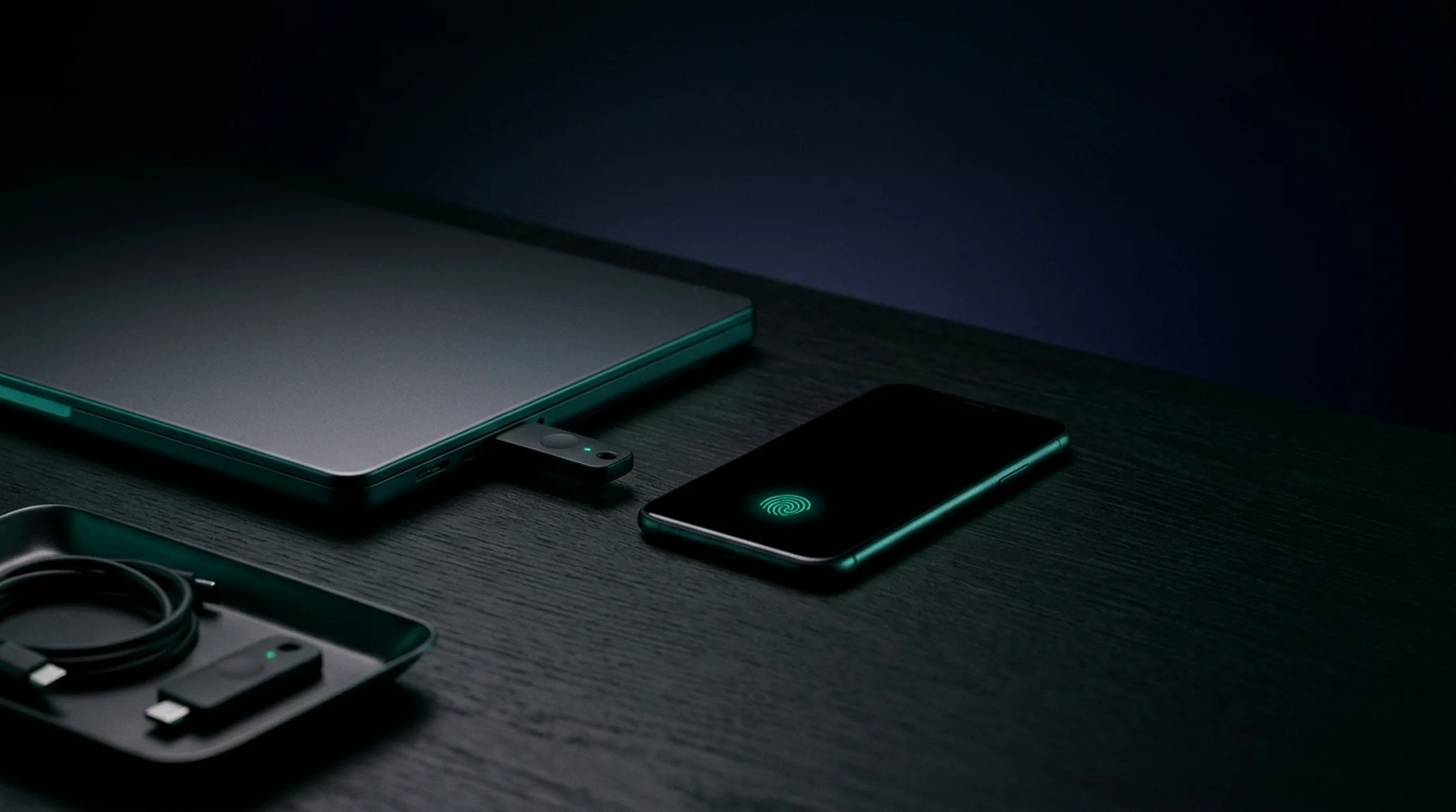
A YubiKey is a hardware security key from Yubico. It stores credentials in a tamper-resistant chip and signs challenges after you touch it. The private key cannot be exported, copied or synced, even by you.
That makes it the strongest option for accounts where the cost of a takeover is high. The evidence is concrete. Google reported in 2018 that after it required physical security keys for its 85,000+ employees, it had no confirmed account takeovers since the rollout in early 2017. A 2019 Google study of account hijacking compared methods against three attack types:
| Method | Automated bots | Bulk phishing | Targeted attacks |
|---|---|---|---|
| SMS code | 100% blocked | 96% blocked | 76% blocked |
| On-device prompt | 100% | 99% | 90% |
| Security key | 100% | 100% | 100% |
One key also does more than FIDO2. The YubiKey 5 series supports FIDO2/WebAuthn, FIDO U2F, PIV smart-card login, OpenPGP and OATH one-time codes. You can use it to sign in to Google or GitHub, sign Git commits, authenticate SSH sessions and store TOTP secrets, all with one device.
Practical advice for owning one
- Buy at least two. Register both on every important account. Keep the second in a safe, a bank box or an office drawer.
- Pick the form factor for your hardware. USB-C for current laptops and phones, USB-A for older machines, NFC for tapping a phone. The YubiKey Bio adds a fingerprint reader in place of touch-only confirmation.
- Set a PIN on the FIDO2 application. A stolen key then needs more than possession.
- Prioritise accounts. Start with primary email, the password manager, your cloud console, your domain registrar, your code host and your bank. Email comes first because every password reset flows through it.
- Generate backup codes where the service offers them, and store them offline.
Prices start at $29 for a basic FIDO security key, run about $58 for a YubiKey 5 NFC and reach $98 for the YubiKey Bio. One compromised admin account costs more than the whole drawer.
Alternatives: Authenticator-App OTP and Email OTP
You cannot move every service to passkeys today. If a service offers nothing better, use these, in order of preference.
TOTP through an authenticator app
Time-based one-time passwords (RFC 6238) are the six-digit codes in Google Authenticator, Microsoft Authenticator, Aegis, 2FAS or 1Password. The app and the server share a secret at setup, and both compute a code from that secret plus the current 30-second window.
Strengths:
- Works offline and on any service that supports it.
- Not exposed to SIM swapping.
- Costs nothing and takes two minutes to set up.
Weaknesses:
- The code is still typed by a human, so a fake login page can collect it and relay it to the real site within the 30-second window. Tools such as Evilginx automate this.
- The secret sits on your phone. Losing the phone without a backup locks you out.
- Google Authenticator can sync secrets to a Google account. That is convenient, and it also moves your second factor into a cloud account. Decide on purpose.
Use an app that supports encrypted backups or export (Aegis, 2FAS, 1Password), and store the recovery codes offline.
Email OTP and magic links
The server emails a code or a one-time link. For consumer products it removes the password from the sign-up flow, and users already understand it.
Strengths:
- No app, no hardware and no memorised secret.
- Low friction for infrequent logins.
Weaknesses:
- It is phishable in the same way TOTP is.
- It is only as secure as the mailbox. If the mailbox sits behind a weak password, email OTP is a weak password with extra steps.
- Delivery delays and spam filters break login at the worst moments.
- Email is transmitted through several servers, without end-to-end encryption.
Treat email OTP as a fallback and a recovery channel for low-risk accounts, with the mailbox secured by a passkey or security key.
What to avoid: SMS codes
SMS is better than a bare password and worse than everything above. SIM swapping, SS7 weaknesses and number recycling all give attackers a path. NIST classifies SMS as a “restricted” authenticator in SP 800-63B. Keep it only when a service gives you nothing else, and move off it as soon as that changes.
The Ladder at a Glance
| Method | Phishing-resistant | Stops credential reuse | Recovery effort |
|---|---|---|---|
| Password only | No | No | Low |
| Password + SMS | No | Partly | Low |
| Email OTP | No | Yes | Low |
| Password + TOTP | No | Partly | Medium |
| Synced passkey | Yes | Yes | Low |
| Hardware key (YubiKey) | Yes | Yes | Medium |
Only the last two rows stop phishing. The rest raise the bar for lazy attackers and fail against a motivated one.
What to Do If You Build Products
Roll authentication out in this order.
- Offer passkeys as the primary sign-in. Use a maintained library (SimpleWebAuthn for Node.js, py_webauthn for Python, webauthn-rs for Rust) or an identity provider that supports passkeys (Auth0, Keycloak, AWS Cognito, Clerk). Do not write WebAuthn verification yourself.
- Prompt for passkey enrolment after a successful login. Ask right after login, when the user has just proved who they are. A settings page nobody opens enrols nobody.
- Support hardware keys alongside platform passkeys. Require them for admin roles, staff accounts and anyone with access to production data.
- Keep TOTP as the fallback, and email OTP for low-risk flows. Drop SMS for new users.
- Remove the password when a user enrols a passkey. If the old password stays active, an attacker uses it and your new security does nothing. Let the user delete the password from their account.
- Design recovery first. Account recovery is where attackers go once login is hard. Require multiple enrolled authenticators or backup codes, add a cooling-off delay on recovery and notify the user on every change. A recovery flow that skips the strong factor undoes the work.
- Use step-up authentication for sensitive actions such as changing the payout account or exporting data. Ask for a fresh passkey touch even inside a live session.
- Rate-limit and log every authentication endpoint, including OTP verification.
The same principles apply to internal systems. Put single sign-on in front of your tools, require phishing-resistant factors at the identity provider and let applications inherit them. That gives one place to enforce policy and one place to revoke access when a person leaves.
A Plan You Can Finish This Month
For yourself:
- Buy two security keys.
- Register them on email, your password manager, cloud, code hosting and bank.
- Turn on passkeys in your main Apple, Google or Microsoft account and in a password manager.
- Replace SMS codes with TOTP or passkeys everywhere that allows it.
- Print backup codes and put them in a safe.
For a team:
- Inventory every system that signs people in, and list which factors each supports.
- Move the identity provider to phishing-resistant factors for admins first, then everyone.
- Hand out hardware keys, two per person.
- Switch off SMS and password-only paths one system at a time.
- Test recovery with a person who has lost everything.
Conclusion
Passwords made sense when one user and one machine shared one secret. The modern web gives every person hundreds of accounts, and attackers automate against all of them. Passkeys and hardware keys fix the structure: no shared secret exists, so none leaks and none can be typed into a fake page.
Authenticator apps and email OTP are useful stepping stones when a service lacks better options. Treat them as that, and plan the move off them.
We build authentication into web platforms, mobile apps and IoT products, from passkey login to hardware-backed device identity. If you want to move a product off passwords or review the one you have, get in touch.
Frequently Asked Questions
What is a passkey?
A passkey is a FIDO2/WebAuthn credential. Your device creates a key pair for each site, keeps the private key and gives the site only the public key. You unlock it with a fingerprint, face scan or device PIN. Nothing reusable travels over the network.
Are passkeys safer than a password plus an authenticator code?
Yes. A passkey is bound to the real domain, so a fake login page cannot use it. A password plus a six-digit code can still be typed into a fake page and relayed to the real one in real time.
Do I need a YubiKey if I already use passkeys?
Not for every account. Synced passkeys cover most people. A YubiKey adds a device-bound credential that no cloud account can leak, so it suits admin accounts, email, password managers, cloud consoles and anyone with a high threat profile.
What happens if I lose my YubiKey?
Register at least two keys on every important account and keep the second one in a safe place. Store one-time backup codes offline. Then losing a key costs you a trip to the safe, not an account.
Is email OTP secure enough?
It is acceptable as a fallback or for low-risk accounts, and only if the mailbox itself is protected by a passkey or hardware key. It is phishable, and it is only as strong as the inbox that receives it.